Showing posts with label Password. Show all posts

Sunday, February 16, 2014

Why AD User account locked out

Why My Account is locked out frequently???
This is one of the most common questions, users are complaining that their account is being locked and they even did not type their password.
Today I will talk about this problem and how can you fix it, I saw a lot of blogs and software that report from where the account is locked, but in some cases you need to know more.

The First Question is: From where this account is being locked out ??
There are several software (Some are free and other paid) that can tell you from which computer or device this account get locked.
One of the simplest way and its free is to search in DC Security Eventlog for the following
Event ID: 4740
Event source: Microsoft Windows security auditing
In this log what you will see is this

Notice that the Caller Computer Name is the computer or device that cause the account to be locked, In my case its Win7x86.
Now we have the computer name, but where in this computer you should search, there are several places that could have the old or wrong password saved.!!, it could be :
  1. Map Drive
  2. Schedule Task
  3. Windows Service
  4. Saved credential in user Credential Manager in Control panel
  5. Password for Mail account that is stored on user Mobile device 
  6. and several other location.
To save some time there is a good tool (Free Trail)
http://www.netwrix.com/account_lockout_troubleshooting.html (Account Lockout Examiner)  for querying the computer name that causing the account lock and also perform some basic check on the target machine to analyze what may cause the lock out "schedule task, MAP Drive, Windows Services...".

This seem to be good, but not always give you the right answer
Sometime its something else, not Windows Service or schedule task or any of the built in fixes. so what should you do..
In this case you will need to monitor Failed Audit for:
- Audit process tracking. ( not required but it will give you more information)
- Audit logon events.
Run Gpedit.msc on the local computer and navigate to:
Windows Settings \ Security Settings \ Local Policies \ Audit Policy

And from there you will double click on  Audit logon events and put a check Success , Failure
Set back and relax, and wait for the next lockout and once it happens review Client Machine Audit log and check the failed Log you will see something like this

As you can see and in my case the process that is using the old password is Sharepoint Search component (mssdmn.exe). so simply update the password to a new password from sharepoint site.

This is the best way to get put your finger on the main problem. I hope you like this


Thursday, October 10, 2013

Get A list of Users with Password expire in 2 days and notify them by Email

My Company policy do not allow any user with "Password Never Expire" except for Services access, All other users (human being) must change their password every 30 days.
So one of the main problem is that there are several users in travel and need to  view their emails using mobile client application which dont have a password expir-ation track, so I write this script that will get a list of users that has been using his password for more than 27 day and report

#I like to clear the screen before starting
cls
#The NeverUser value will hold the Enabled users information only
#this Done by using the userAccountControl attrib, if this attrib is 512 it mean that the account is Enabled
#If This value is 514 this mean that the account is disabled
$NeverUser=Get-ADUser -Properties displayname,sAmAccountName,pwdlastset,mail  -Filter{userAccountControl -eq 512} -SearchBase "OU=Employees,DC=Domain,DC=local" | select displayname,sAmAccountName,pwdlastset,mail

#Now I will start reading the value in the NeverUser
Foreach($SingleUser in $NeverUser){
#$First Date will hold the Last date the user set his password
$FirstDate=[datetime]::FromFileTime($SingleUser.pwdlastset)
#SecondDate will hold the value of the current date, you will know why in the next line
$SecondDate= Get-Date
#the calculation I used is to subtract the current date from the date when the user set his password
#the result will be the number of days the user is using the current password
$Result= $SecondDate -$FirstDate
#In my example I will generate a list of users who use their password for a period between 27 and 28 days, you may ask why? 
# First no need to inform a user with an already expired password that his       password will expire soon, as its already expire and he can not login
# Disabled user object may have the pwdLastSet very high (even i exclude them    using the Filter in Get-ADuser)
#This script is made to run everyday, without this restriction, the script will  send the user emails regarding their password till forever come and this is not  needed
if ($Result.Days -gt 26 -and $Result.days -le 29){
$ManyDays =30 - $Result.Days
#The Email Body, you can make it what ever you want
$EmailMessage ="Good day 
Your Password will Exipre in $ManyDays."
#Send-MailMessage used to send an Email message, you can also include attachment if you want  
Send-MailMessage -to $SingleUser.mail -From "" -Subject "Please Change your password" -Body $EmailMessage -SmtpServer "Your.Mail.Server"
} }

Sunday, September 15, 2013

Reset Windows 8 Password without any software

Good day,
There are alot of software  (Freeware/Shareware) for reseting Windows 8/7 Admin Password.
But sometime you dont have these tools or they are incompatible with the OS version.
In this article I will talk about how to reset the admin password / or any other password without any tools.
All what you need is windows 8 DVD.

Windows 8 

  1. Boot From the DVD (adjust you BIOS setting for First Boot Device: DVD)
  2. When the loading completes, select the needed language. Then a window with "Install Now" button will display. Click "Repair your PC".
  3. Once recovery screen appear, press Shift+F10, then a command window will display. Enter commands below
  4. copy C:\Windows\System32\Utilman.exe C:\ (this command is to create a backup of the file)
  5. copy C:\Windows\System32\cmd.exe C:\Windows\System32\Utilman.exe
  6. Confirm "Yes" when there is prompted.
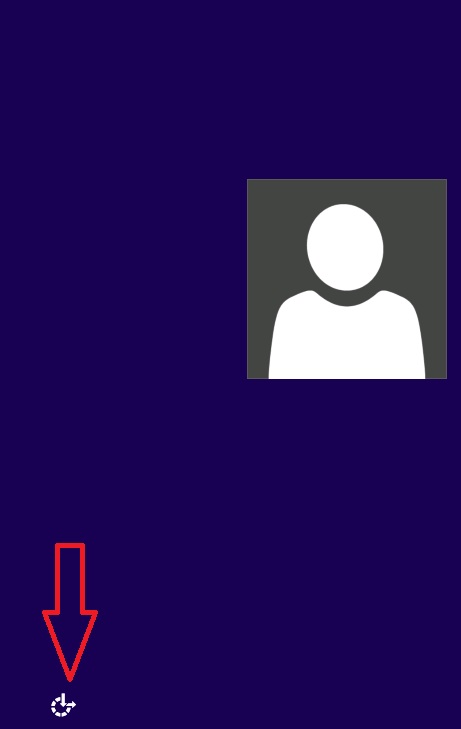
The Utilman.exe is the accessible options for windows 8 

Now all what you have to do is press on it, and the CMD will appear, simply write the command 
Net user "UserName" "NewPassword"
To Get a list of the current users use the command Net user
and you are done :)

for Windows 7 follow the same steps but in step 4 the file you will copy is sethc.exe
So it will be 
  1. copy C:\Windows\System32\sethc.exe C:\ (this command is to create a backup of the file)
  2. copy C:\Windows\System32\cmd.exe C:\Windows\System32\sethc.exe

Enjoy, and dont forget to restore the file to its original name when you finish

if you like this ,Please Share it